FIFO

Why Your Business Central Inventory Is Correct, but Your Reports Are Wrong

Why Your Business Central Inventory Is Correct, but Your Reports Are Wrong 

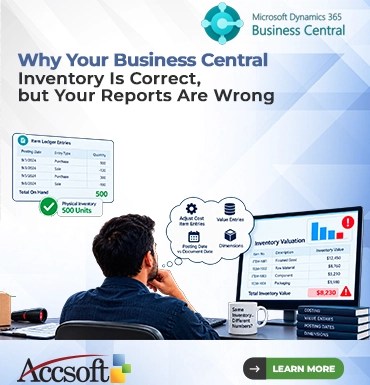
Has it ever happened to you that you have been sitting in front of your Microsoft Dynamics 365 Business Central screen, scratching your head? Your Item Ledger Entries are showing precisely 500 units of an item. Your physical inventory count is 100% accurate too. However, when you generate your financial report or even access your Power BI dashboards, your inventory is entirely wrong. You fee the system is lying. How is it possible that your inventory is spot on while your reports are just completely wrong?  It’s an irritating situation, but it happens quite frequently. What normally messes up is not the physical inventory but the process of costing, timing, and data relationships in Business Central. Here is the list of the most common mistakes.  “Adjust Cost – Item Entries” Batch Job  Initially, Business Central does not immediately account for the financial valuation of items when they are either received or shipped. Based on your cost flow method be it FIFO, LIFO, Average, or Standard. BC calculated the actual cost of goods sold asynchronously. If the “Adjust Cost – Item Entries” batch job doesn’t complete, there will be discrepancies between your Value Entries, which system uses for financial reporting purposes. And also your Item Ledger Entries, which record the physical quantities. When using Average costing, clear the difference by using the “Adjust Cost – Item Entries” batch job.  Item Ledger Entries versus Value Entries  In addition, it is imperative that one can distinguish between Item Ledger Entries and Value Entries. While the former captures the physical movement of materials that is, the quantity moving in and out and the later captures the financial implication of such moves that is, the dollars entered the General Ledger. While examining the Item Card, one sees entries that have been dictated by the Item Ledger Entries. The financial statements, such as Trial Balance, and Inventory Valuation reports, however, depend entirely on Value Entries. When there is any difference, it normally means that while an Item Ledger Entry has been made, the related Value Entry was either blocked, incorrectly set up, or delayed because of costing issues.  Date of posting as opposed to date of documentation is yet another reason for reporting confusion. As you receive or ship goods, you assign a posting date to these transactions. If you receive or ship the inventory on the last day of the month but receive the document five days after the month ends, BC accounts for this difference through “Expected Cost Posting.” While the actual inventory updates instantly, its value goes into an intermediate account in your accounting system. If you generate a report with a certain date filter, the posting of the transaction may fall outside the report range.  Dimensions Missing  Lastly, there may be incorrect report generation due to missing dimensions. This happens because of dimensions for segmenting the financial information for department/project reporting. If any item comes in without the correct global dimension value, the inventory value will exist in BC but not appear correctly in the dimensional report. The problem with dimensions is that there is correct global inventory but dimensionally it is incorrect. Make sure that default dimensions are set up properly on item cards and vendor cards to avoid incorrect data.  Summary  In conclusion, having correct physical inventory in Business Central does not mean that your financial report generation is correct. The discrepancy between physical inventory and accounting can be caused by costing batch jobs, the difference between ledger and value entries, correct date control and perfect dimension setup. If your report is wrong, do not recount the inventory. Instead, check the status of Adjust Cost batch job, value entries for missing amounts, dates used to produce the report and dimension setup. 
Continue Reading
How to Fix WIP (Work in Progress) Costing Issues in Dynamics 365

How to Fix WIP (Work in Progress) Costing Issues in Dynamics 365 

There are not many problems more stressful than a Work in Process (WIP) account that just will not settle. The D365 Work in Process account should work as a holding tank in Dynamics 365 Finance & Operations. WIP holds your cost of materials, labour, and overheads until the production order completion and flushes these costs into your finished goods account.  When you have WIP accounts that never settle, go negative, or run amuck, then it affects your entire balance sheet and bottom line. When WIP is your nemesis, follow along here on how to fix the most common Work in Process accounting issues in D365.  1. Make sure WIP is enabled  This sounds easy but encounters frequently. When you have costs posting to your P&L straight away instead of posting to the WIP account, it’s time to review the parameters. Go to Production control > Setup > Production control parameters, then go to the WIP tab and make sure WIP is enabled. You will also need to enter valid accounts for materials, labour and overhead. If the fields are empty, D365 will simply not be able to post the costs to WIP.  2. Review your Ledger Posting Profiles  If WIP is enable but costs are posting to the wrong accounts. Then you probably forgot about your Posting Profiles. Go to General ledger > Posting setup > Posting and select your Production profile. Open the Production tab and make sure you have the WIP accounts for Resource (Labour/Machine), Materials and Overhead filled in properly. A simple mistake in those GL accounts will post the costs to a different financial period.  3. Strict Enforcement of Reporting on the Shop Floor (The Operational Fix)  WIP is calculating on the basis of reported amount rather than the actual amount available on the shop floor. As a result, the WIP always lower than expected if your WIP understates due to unreported costs.  Material Missing: Is there is any issue of material by the shop floor but has no entry in the Pick list Journal in the warehouse?  Labour Missing: Are the operators working for 10 hours but reporting only 8 hours of work in the Route Card Journal?  Without posting these entries, D365 cannot transfer the cost from the accounting period to the WIP account.  4. Production Orders Status Must be “Ended”  Production orders may be “Reported as Finished” (RAF) but remain open. An order that is not closed keeps WIP in your balance sheet. To move WIP to your inventory, it is necessary to change the status of the order to “ended.” Perform regular checks of the production orders in the RAF status and end them.  5. Resolve Divergent WIP Valuation Approaches  D365 calculates the WIP accounting valuation in a particular way that depends on your inventory valuation approach. In case you have the Standard Cost approach, then WIP valuation is made on standard cost and variances flow to the P&L. In case you apply Actual Cost (FIFO / Weighted Average), WIP valuation will compute depending on the chosen estimating approach (e.g., On-hand, WIP at reporting percentage). You need to make sure that your estimation approach in the Production Control Parameters corresponds to your financial approach. In case you are using “WIP at reporting percentage” but can’t report the accurate completion percentage, then WIP accounting will distort completely.  The Bottom Line  WIP troubleshooting in D365 is an approach that implies elimination. Start from the system-related aspects (parameters, posting profiles), proceed to the transactional aspects (journals), and end up with the procedural ones (ending orders, shop floor control).  In case your WIP accounts are still holding hostage thousands of dollars of unfinished costs, you don’t need to solve it on your own. Our experts in the D365 manufacturing financial area will audit your WIP configuration. 
Continue Reading
The Secret Life of an Item Card: What Happens Behind the Scenes When You Post a Transaction

The Secret Life of an Item Card: What Happens Behind the Scenes When You Post a Transaction 

The Item Card in Microsoft Dynamics 365 Business Central might seem basic, a place to put the basic product details like description, cost, and inventory levels. But the moment you post a transaction, a purchase, sales order, or transfer, the Item Card springs to life.  Behind all that, there is a complex choreography of costing, ledgers, reservations, availability, and so on. That’s what, in fact, makes Business Central so powerful. This blog reveals the secret life of an Item Card in Microsoft Dynamics 365 Business Central and describes what happens under the hood when you hit Post.  1. The Item Card Isn’t Just a Form, It’s a Control Centre  Think of the Item Card as the command hub for everything related to your product.  Each domain drives how BC will treat transactions, cost, reservations, or replenishment.  2. How the Item Card Handles the Purchase  Posting a Purchase Order receipt triggers the following actions in Business Central:  a. Item Ledger Entries are created.  BC pens a new entry recording:  This becomes part of the item’s inventory history.  b. Value Entries are generated  These store the financial impact of the receipt, including:  c. Costing Method decides valuation  Depending on whether the item uses FIFO, Average, Standard, LIFO, or Specific, BC assigns cost layers differently.  d. Availability updates instantly  On-hand inventory increases the moment the receipt posts. Behind the scenes, the Item Card updates fields such as:  3. Sales Posting: How BC Depletes Inventory and Calculates Cost of Goods Sold  When you post a Sales Shipment or Invoice, the Item Card invokes its costing logic:  a. Inventory is reduced  BC identifies which cost layer to use based on the costing method and reduces on-hand quantity.  b. Outbound Item Ledger Entry is created  Documenting:  c. Cost of Goods Sold is calculated  Value Entries are made by using the correct cost layer.  For instance,  Every outgoing transaction refers to its precise incoming origin.  4. Routine of Cost Adjustment Begins to Work Silently  If costing isn’t fully known at posting for example, expected cost, then BC schedules Adjust Cost, Item Entries in the background.  This process:  This is the reason you might see cost adjustments “jump” into financial reports later.  5. Reservations & Item Tracking Kick In  When you post, BC checks:  Item Card settings determine whether the system:  Item tracking ensures traceability at every stage for inventory.  6. The Replenishment System Wakes Up  Posting a receipt or shipment may trigger planning actions:  This is where the Item Card acts as a feeder into Business Central’s full planning engine.  7. Posting Groups Determine the Financial Effect  Posting of an item is not just an inventory update; it is an accounting event.  The Item Card’s Inventory Posting Group and General Posting Group determine which G/L accounts are used for:  When you post, the Item Card sends instructions to the G/L via Posting Groups.  8. The Item Card Updates Its Own Statistics  After every posting, BC updates key fields automatically:  These fields become the source for reports such as:  9. If posting is wrong, reverse transactions activate  When users reverse a transaction, BC doesn’t delete anything.  Instead, it creates:  The Item Card assures full auditability.  10. All This Happens in Seconds Automatically  Every click of Post runs a full chain reaction:  All powered by the humble Item Card.  Concluding Remarks:   The Item Card in Microsoft Dynamics 365 Business Central is the brain of Inventory within Business Central. What seems to be a simple product record is a deeply interconnected engine controlling:  Traceability Analytics Knowing what goes on behind the scenes will help users troubleshoot, optimize, and trust the data Business Central provides. 
Continue Reading