Item tracking

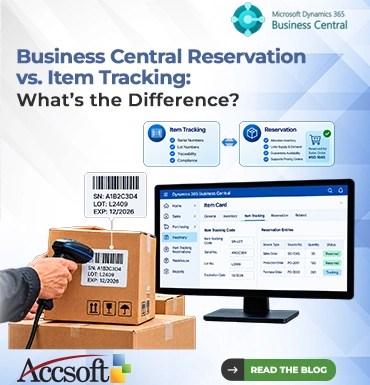
Business Central Reservation vs. Item Tracking: What’s the Difference?

Business Central Reservation vs. Item Tracking: What’s the Difference? 

When managing inventories in the Microsoft Dynamics 365 Business Central, you must have come across “Item Tracking” and “Reservation.” As a beginner, they may appear to be two similar concepts, since they both relate to having the right item reach its destination at the right time. Treating them as one may result in inflexible procedures, delays in fulfilling the order or compliance issues. So, what is the difference? It is simple; Item Tracking is about identifying while Reservation is about allocating. Now let us understand their operations and what could happen when you get them mixed up.  What Is Item Tracking?  In Dynamics 365 Business Central, the concept of item tracking is what enables your organization to assign an individual identity to its inventory. Item Tracking works with Serial Numbers (individually assigned per item) and Lot Numbers (per batch) to enable tracking of the real-life history of a product. Essentially, think about Item Tracking as the “passport” of your item.  Should your organization sell medical equipment, electronic goods, or perishable foods, it needs to know for sure which item went to which customer. Should a product recall take place, you must identify the item instantly. However, it should be noted that Item Tracking itself does not mean assignment of a specific item to a specific customer. The key point is that it enables you to track all the history of an item when it left your warehouse, how long it stayed there, expiration date, or warranty start date. Without item tracking, your computer is just a computer. With item tracking, you know its serial number and, thus, owner.  What is Reservation?  Reservation, on the contrary, is a rigid connection between supply and demand. It is a commitment. Once you generate a Sales Order and make a reservation for an inventory, you are telling Business Central, “Reserve 50 units of Item A exclusively for this customer.”  Reservation is a strong allocation technique to cater to VIP customers or to satisfy any production order. It ensures availability during the picking phase, irrespective of all other incoming orders in the warehouse. You can make reservations for available inventories as well as for expected supply such as Purchase Orders. In case your key client demands a huge quantity of products for the next month, making a reservation will ensure that regular walk-in customers do not reduce that inventory.  Working Together  Now here comes the fun part: Item Tracking and Reservation do not exclude each other. Quite often, the two go hand in hand. You can reserve a particular tracked item. If, for example, you need to deliver “Lot B” of a certain pharmaceutical product owing to its unique expiration date, then Item Tracking will help to find Lot B and Reservation to reserve it from any other order.  But if you employ Item Tracking without Reservation, the system will allocate your lot to another customer who completes the transaction faster. It is one of the frequent mistakes made by people, who confuse Item Tracking with Reserving. An item, although being tracked, does not have to be reserved, otherwise some other order will be able to take it. On the other hand, you may want to reserve any untracked items just for the sake of ensuring their availability, not specifying which one exactly.  Conclusion  Proper use of each function is essential in having an effective supply chain. Apply Item Tracking when there is a need for compliance, traceability, and warranty management. Apply Reservation when there is a need to ensure that there are enough for certain requirements, prioritize priority customers, and secure inventory for a production batch. Avoid reserving all your stock because it will restrict your ability to manage other clients’ orders. Similarly, avoid applying item tracking on simple and low-value inventory that only requires additional data entry. Remember that Item Tracking is the “what” and Reservation is the “who.” 
Continue Reading
The Secret Life of an Item Card: What Happens Behind the Scenes When You Post a Transaction

The Secret Life of an Item Card: What Happens Behind the Scenes When You Post a Transaction 

The Item Card in Microsoft Dynamics 365 Business Central might seem basic, a place to put the basic product details like description, cost, and inventory levels. But the moment you post a transaction, a purchase, sales order, or transfer, the Item Card springs to life.  Behind all that, there is a complex choreography of costing, ledgers, reservations, availability, and so on. That’s what, in fact, makes Business Central so powerful. This blog reveals the secret life of an Item Card in Microsoft Dynamics 365 Business Central and describes what happens under the hood when you hit Post.  1. The Item Card Isn’t Just a Form, It’s a Control Centre  Think of the Item Card as the command hub for everything related to your product.  Each domain drives how BC will treat transactions, cost, reservations, or replenishment.  2. How the Item Card Handles the Purchase  Posting a Purchase Order receipt triggers the following actions in Business Central:  a. Item Ledger Entries are created.  BC pens a new entry recording:  This becomes part of the item’s inventory history.  b. Value Entries are generated  These store the financial impact of the receipt, including:  c. Costing Method decides valuation  Depending on whether the item uses FIFO, Average, Standard, LIFO, or Specific, BC assigns cost layers differently.  d. Availability updates instantly  On-hand inventory increases the moment the receipt posts. Behind the scenes, the Item Card updates fields such as:  3. Sales Posting: How BC Depletes Inventory and Calculates Cost of Goods Sold  When you post a Sales Shipment or Invoice, the Item Card invokes its costing logic:  a. Inventory is reduced  BC identifies which cost layer to use based on the costing method and reduces on-hand quantity.  b. Outbound Item Ledger Entry is created  Documenting:  c. Cost of Goods Sold is calculated  Value Entries are made by using the correct cost layer.  For instance,  Every outgoing transaction refers to its precise incoming origin.  4. Routine of Cost Adjustment Begins to Work Silently  If costing isn’t fully known at posting for example, expected cost, then BC schedules Adjust Cost, Item Entries in the background.  This process:  This is the reason you might see cost adjustments “jump” into financial reports later.  5. Reservations & Item Tracking Kick In  When you post, BC checks:  Item Card settings determine whether the system:  Item tracking ensures traceability at every stage for inventory.  6. The Replenishment System Wakes Up  Posting a receipt or shipment may trigger planning actions:  This is where the Item Card acts as a feeder into Business Central’s full planning engine.  7. Posting Groups Determine the Financial Effect  Posting of an item is not just an inventory update; it is an accounting event.  The Item Card’s Inventory Posting Group and General Posting Group determine which G/L accounts are used for:  When you post, the Item Card sends instructions to the G/L via Posting Groups.  8. The Item Card Updates Its Own Statistics  After every posting, BC updates key fields automatically:  These fields become the source for reports such as:  9. If posting is wrong, reverse transactions activate  When users reverse a transaction, BC doesn’t delete anything.  Instead, it creates:  The Item Card assures full auditability.  10. All This Happens in Seconds Automatically  Every click of Post runs a full chain reaction:  All powered by the humble Item Card.  Concluding Remarks:   The Item Card in Microsoft Dynamics 365 Business Central is the brain of Inventory within Business Central. What seems to be a simple product record is a deeply interconnected engine controlling:  Traceability Analytics Knowing what goes on behind the scenes will help users troubleshoot, optimize, and trust the data Business Central provides. 
Continue Reading