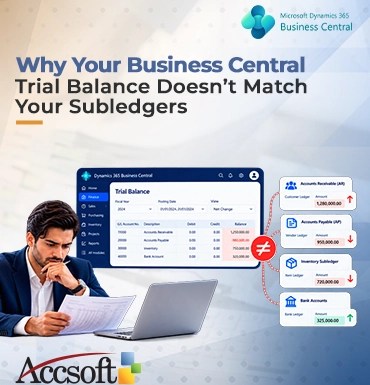
Nothing is more exasperating when doing the month-end close than to find that your Trial Balance (TB) does not reconcile to your subledgers. You have done your Trial Balance on your Microsoft Dynamics 365 Business Central system, and you review your AP or AR subledger summary, only to see a variance. This is something that gives an accountant or controller sleepless nights. When your general ledger (G/L) and your subledgers get out of alignment. This is usually caused by certain system setups, timing issues, or user processes in the Business Central system itself. Understanding what the root cause is will enable you to fix it. Here is why your Business Central Trial Balance does not reconcile with your subledgers, and how to fix it. 1. Direct Posting to G/L Control Accounts What happens most of the time to create a TB/subledger discrepancy? The answer lies in the practice of direct posting to G/L control accounts. In Business Central, control accounts are the G/L accounts that represent your AP, AR, or Inventory subledgers. These accounts are supposed to be posted only by the system after you have posted an invoice against a vendor/customer/transaction in your inventory. Yet, when the users can post their manual General Journal directly to these G/L control accounts, the balance in the account changes while the balance in the subledger remains the same. Solution: Check the “Direct Posting” option on your Chart of Accounts for all AP, AR, and Inventory control accounts. 2. Unposted Journals and Approval Workflows Time-related issues also contribute greatly to difficulties in reconciliation. Unposted General Journals or Sales/Purchase Journals left in the user queue or awaiting their approval can lead to your sub-ledger having transactions that have not yet been recorded in the General Ledger. For example, when a vendor invoice is entered and released in the Purchase Invoices window, it might not appear on the Trial Balance since it is not posted yet. On the other hand, when you post a General Journal to the General Ledger, but the posting for sub-ledger is wrong, you will find the difference. Solution: Prior to generating a Trial Balance at the end of the month, make sure to post all batches and there are no pending approval workflows. Make use of User Setup to enforce mandatory closing dates to prevent backdated transactions in the closed period. 3. The Inventory Costing Lag When your AP/AR ledger matches precisely, but not your Inventory sub-ledger with the GL ledger, then chances are very high that the problem is due to cost postings. In Business Central, inventory costing occurs on-the-fly. When receiving or delivering inventory, a business system makes use of “Expected Cost,” which goes into an intermediate G/L account. Once you have posted an invoice, Business Central will need to make cost adjustments. If “Adjust Cost – Item Entries” job is not run, and “Automatic Cost Posting” is disabled in your Inventory Setup, then the cost adjustments will get stuck in your sub-ledger and never be posted to your GL ledger. How to fix this problem? Go to Inventory Setup and set “Automatic Cost Posting” and “Automatic Cost Adjustment” to “Always.” Furthermore, you should schedule Adjust Cost – Item Entries job to run automatically in the Job Queue. 4. Discrepancies with Reconciliation of Bank Accounts In some cases, the discrepancy might be in Bank Accounts sub-ledger. In such cases, users have reconciled their bank accounts outside the Bank Account Reconciliation module or have posted fees and interest on their bank account straight to G/L without reflecting those transactions on the Bank Account ledger. Fix: Always post bank fees, interest, and other clearing accounts via the native Bank Account Reconciliation journals of Business Central application. This will ensure that both G/L and bank sub-ledger get updated at the same time. Conclusion If your Business Central Trial Balance doesn’t tie out with your subledgers. This usually is not because of a glitch in the software itself but rather a result of the way you manage it. By preventing postings to your control accounts. Posting within specific timeslots and automatically adjusting your inventories, you’ll make sure that your G/L and subledgers always match up.
In the world of e-commerce today, speed and accuracy have become the key battlegrounds. Customers expect an Amazon-style experience: immediate order confirmation, quick delivery, and up-to-date inventory. For expanding e-commerce businesses, the largest hurdle that prevents growth may well be the Order Gap the gap between your customer’s shopping cart and your warehouse. Today, many businesses still conduct their orders manually. Printing orders from a web-based portal, entering the order details into the accounting system, and sending the shipment data via email. Not only does this process take time, but it also sets the stage for inevitable human error. Enter Microsoft Dynamics 365 Business Central. By seamlessly connecting your e-commerce storefront with your powerful ERP (Enterprise Resource Planning) system, you can completely automate your entire order-to-cash process. Here’s how top-tier e-commerce companies leverage Microsoft Dynamics 365 Business Central to transform manual madness into automated efficiency. 1. Seamless Order Integration Across Channels Regardless of whether you’re selling your products on Shopify, Magento, WooCommerce, or even on third-party sellers such as Amazon or eBay. Keeping up with multiple sales channels by handling each channel separately can be extremely hectic. Business Central provides support through its pre-integrated connector as well as its integrating capabilities with all the above-named sales channels. The moment a customer clicks on the “buy” button, the order does not sit and wait until an employee exports it into a CSV file. Instead, it flows directly into the Business Central system, eliminating the need for any manual data input at all. 2. Real-Time Stock Synchronization The most frustrating thing for any customer is making an order and then receiving an email after a few days that the product he or she ordered is out of stock. This is due to inconsistencies between the inventory level on the online shop and that of the physical inventory in the warehouse. Business Central solves this problem by serving as the “single source of truth” for inventory. When a customer makes an order, Business Central automatically reduces the inventory stock. This data is synced in real time to the webstore, making fewer stock levels available to other customers. When the stock level rises in the warehouse, this information is immediately shared with the online shop through automation. 3. Automated Fulfilment and Shipping After the order is placed in Business Central, the system will automate the physical process of fulfillment of the order. This means that you can create the list of items for picking by workers, or you can connect the Business Central with WMS to show where the item located within the warehouse. However, even better is the shipping integration. The system works with UPS, FedEx, and DHL. After the order is packaged, the system will calculate the rates of the shipping, print the labels and pack slips with just one click. The tracking number will be entered into the sales order automatically and will be forwarded to the customer via email. 4. Financial Automation and Reconciliation The last missing link here is money. In the traditional setting, the accounting department would spend many hours reconciling payments received via payment gateways such as Stripe or PayPal against the invoices in their accounting software. With Business Central, an automatic posting of the invoice occurs once the shipment of the order goes through. Thanks to the integration with the payment gateway, the transaction is automatically reconciled, thus providing business owners with an instant overview of their cashflow while saving significant time at the end of the month. The Bottom Line Automation is key to the success of any online retail operation nowadays. Using Microsoft Dynamics 365 Business Central as an example of software capable of automating orders, we see that by doing so, companies will save themselves from costly mistakes, keep track of inventory more effectively, and ship orders faster. Creating a bridge between e-commerce businesses storefront and office operations will allow organizations to concentrate on the right things.