Why Your Business Central Inventory Is Correct, but Your Reports Are Wrong
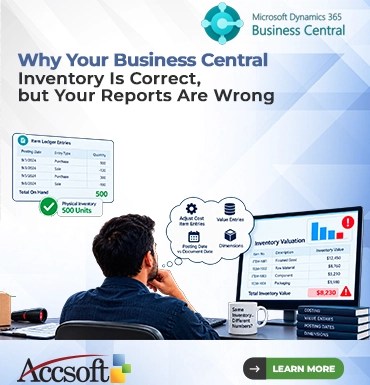
Has it ever happened to you that you have been sitting in front of your Microsoft Dynamics 365 Business Central screen, scratching your head? Your Item Ledger Entries are showing precisely 500 units of an item. Your physical inventory count is 100% accurate too. However, when you generate your financial report or even access your Power BI dashboards, your inventory is entirely wrong. You fee the system is lying. How is it possible that your inventory is spot on while your reports are just completely wrong? It’s an irritating situation, but it happens quite frequently. What normally messes up is not the physical inventory but the process of costing, timing, and data relationships in Business Central. Here is the list of the most common mistakes. “Adjust Cost – Item Entries” Batch Job Initially, Business Central does not immediately account for the financial valuation of items when they are either received or shipped. Based on your cost flow method be it FIFO, LIFO, Average, or Standard. BC calculated the actual cost of goods sold asynchronously. If the “Adjust Cost – Item Entries” batch job doesn’t complete, there will be discrepancies between your Value Entries, which system uses for financial reporting purposes. And also your Item Ledger Entries, which record the physical quantities. When using Average costing, clear the difference by using the “Adjust Cost – Item Entries” batch job. Item Ledger Entries versus Value Entries In addition, it is imperative that one can distinguish between Item Ledger Entries and Value Entries. While the former captures the physical movement of materials that is, the quantity moving in and out and the later captures the financial implication of such moves that is, the dollars entered the General Ledger. While examining the Item Card, one sees entries that have been dictated by the Item Ledger Entries. The financial statements, such as Trial Balance, and Inventory Valuation reports, however, depend entirely on Value Entries. When there is any difference, it normally means that while an Item Ledger Entry has been made, the related Value Entry was either blocked, incorrectly set up, or delayed because of costing issues. Date of posting as opposed to date of documentation is yet another reason for reporting confusion. As you receive or ship goods, you assign a posting date to these transactions. If you receive or ship the inventory on the last day of the month but receive the document five days after the month ends, BC accounts for this difference through “Expected Cost Posting.” While the actual inventory updates instantly, its value goes into an intermediate account in your accounting system. If you generate a report with a certain date filter, the posting of the transaction may fall outside the report range. Dimensions Missing Lastly, there may be incorrect report generation due to missing dimensions. This happens because of dimensions for segmenting the financial information for department/project reporting. If any item comes in without the correct global dimension value, the inventory value will exist in BC but not appear correctly in the dimensional report. The problem with dimensions is that there is correct global inventory but dimensionally it is incorrect. Make sure that default dimensions are set up properly on item cards and vendor cards to avoid incorrect data. Summary In conclusion, having correct physical inventory in Business Central does not mean that your financial report generation is correct. The discrepancy between physical inventory and accounting can be caused by costing batch jobs, the difference between ledger and value entries, correct date control and perfect dimension setup. If your report is wrong, do not recount the inventory. Instead, check the status of Adjust Cost batch job, value entries for missing amounts, dates used to produce the report and dimension setup.