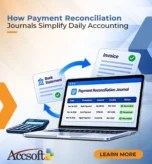

The payment reconciliation journal in Microsoft Dynamics 365 Business Central is where you import bank transactions. You match them to open customer and vendor entries, then post them. It replaces keying each receipt by hand and reconciling the bank account at month-end.
A finance team that handles dozens of bank transactions a day feels the difference quickly. Manual matching against invoices is slow. The mistakes it causes only show up when the trial balance won’t tie out. We covered one cause in why your Business Central trial balance doesn’t match your subledgers. Bank fees and interest posted straight to the G/L can throw the two out of line.
Payment reconciliation journal at a glance
- Each journal belongs to one bank account.
- Lines come from an imported bank statement file or a bank feed.
- Apply Automatically suggests matches, and you control the rules.
- Posting closes the applied invoices and can reconcile the bank account in the same step.
What is the payment reconciliation journal in Business Central?
The journal lists payments, incoming or outgoing, that your online bank account or payment service recorded. You open it by searching for Payment Reconciliation Journals. Each journal belongs to one bank account, so a company with several accounts uses one journal for each.
Lines reach the journal through the Import Bank Transactions action. You can load a .csv file or another format your bank provides. You can also use a bank feed where your country version supports one. If your bank uses an unsupported format, the AMC Banking 365 Fundamentals extension can convert it for import. Microsoft documents the setup in Reconcile payments using automatic application and Applying payments automatically and reconciling bank accounts.
If you connect a bank feed, you can also set the account to import new statements every hour. That way, the journal already has the day’s lines when the accountant opens it in the morning.
How does Business Central match payments to invoices?
Choose Apply Automatically, and Business Central compares each bank line with your open entries. The Payment Application Rules page holds the matching logic, so you decide when a payment counts as matched. Each line also gets a Match Confidence value. That shows you which lines need a second look.
Open the Payment Application page for any line. It shows the candidate open entries and the data behind each match. From there, you can accept the suggestion or apply the payment to other entries by hand. You can also skip automatic application. After you review or manually apply a line, its Match Confidence changes to Accepted. Microsoft’s page on reviewing and manually applying payments walks through the screens.
The matching also recognizes bank ledger entries you already posted. As a result, a payment is less likely to post twice.
What happens to payments that can’t be matched?
Some payments have no invoice to apply to yet. Others differ from the invoice amount, for example because of currency exchange. In both cases, the amount shows in the Difference field of the journal line.
Transfer Difference to Account lets you pick the G/L account the amount posts to. If you applied only part of a payment, the applied part posts against the invoice. The rest goes to the account you chose.
Recurring items, such as bank charges, are easier with Map Text to Account. You map the text on the bank line to a customer, vendor, or G/L account. Later imports then post to that account when you apply automatically. Microsoft’s guide to reconciling unmatched payments has the steps.
Two limits apply. First, Business Central doesn’t adjust currency gains and losses for you when you apply payments to entries in converted currencies. Second, you can’t apply an entry that has the opposite sign to the payment.
How does the journal simplify daily accounting?
Without the journal, an accountant logs into one or more bank portals. Then they find each receipt, look up the invoice, and post a cash receipt line. With the journal, the work starts from a list that already has most lines matched. Posting closes the applied invoices and updates the customer, vendor, or G/L accounts. As a result, balances and aging reports reflect the payment without a second entry. We describe more of these finance tools in how Business Central simplifies financial management.
Accuracy improves for practical reasons. Posting Preview, under Posting, shows the entries the journal will create before you post anything. A dedicated number series also helps. Set it in the Payment Reconciliation No. Series field on the bank account, and you can filter journal postings later. If something is wrong, you can reverse the posted entries from the G/L Register. Together, these steps leave a trail an auditor can follow. Our post on Business Central as a silent internal auditor covers that in more detail.
When you post and reconcile payments every day, the bank reconciliation at month-end becomes a quick check.
A daily workflow, step by step
A typical daily run looks like this:
- Search for Payment Reconciliation Journals, choose New Journal, and select the bank account you are reconciling.
- Choose Import Bank Transactions. If you haven’t set up the bank account for import yet, Business Central walks you through it.
- Choose Apply Automatically, then filter the lines by Match Confidence.
- Open the Payment Application page for lines that need attention. Then apply them manually, map the text to an account, or transfer the difference to an account.
- Run Posting Preview and check the entries.
- Post the journal. Post Payments Only leaves the bank ledger entries open for a separate bank reconciliation. Post Payments and Reconcile Bank Account does both in one step.
Best practices for the payment reconciliation journal
- Set the rules on the Payment Application Rules page to match how your customers reference invoices.
- Work the journal every day. If you skip a day, unmatched lines pile up under the next import.
- Map recurring bank text, such as monthly fees and interest, to accounts. Those lines then post without a manual step.
- Use a dedicated number series for journal postings.
- Compare the journal totals with the bank statement before you post.
- Limit who can post and who can reverse entries. If your policy needs a second pair of eyes, add an approval step, as in the role of approval workflows in Business Central.
- Use bank feeds or a regular import where your bank supports them. Also look at automation workflows for Business Central for other repeating finance tasks.
If you also receive post-dated checks, AccSoft has a separate post dated checks program for Business Central.
Frequently asked questions
It is the page where you import bank transactions and match them to open customer and vendor entries. Then you post the payments. Each journal belongs to one bank account.
Open the journal and choose Import Bank Transactions. You can import a .csv file or another format your bank provides. You can also use a bank feed where available. If your bank uses an unsupported format, the AMC Banking 365 Fundamentals extension can convert it.
No. The journal registers and applies payments from the bank statement. Bank account reconciliation, on the other hand, matches bank ledger entries to the statement. Post Payments Only leaves the bank ledger entries open for a separate reconciliation. Post Payments and Reconcile Bank Account does both in one step.
The unapplied amount shows in the Difference field. You can use Transfer Difference to Account to post it to a G/L account. You can also apply it to other entries manually. For recurring items such as bank fees, use Map Text to Account.
Yes. As with other journals, you can reverse entries from the payment reconciliation journal on the G/L Register page.
AccSoft is a Microsoft Dynamics 365 Business Central implementation partner. If your team still matches bank receipts by hand, we can help. We can also tune the matching rules if you already use the journal. Contact our team or read more about Dynamics 365 Business Central at AccSoft.